
- Home
- Options mobile plans
- Tango Protect
- Parental Control
Parental Control
Protect your child's device and keep control of its use
Blocking
Fraudulent websites and data theft attempts
Geolocation
Of your child at any time
Usage control
Blocking apps and screen time
First month free
Try for free for one month
No commitment
Cancel anytime
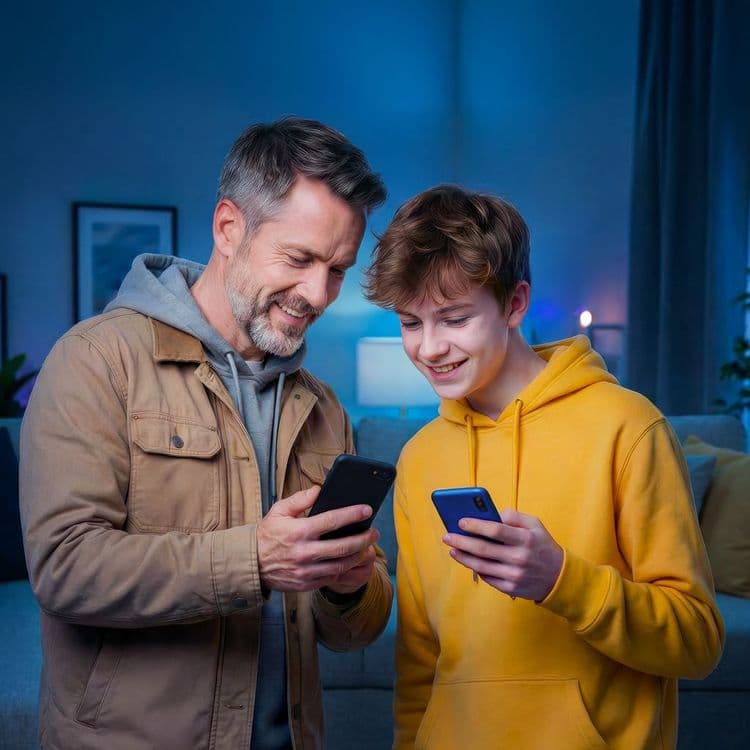
PARENTAL CONTROL by Bitdefender
Protect your child's smartphone and manage their online activity on mobile networks and Wi-Fi, whether in Luxembourg or abroad. For only €3/month, enjoy peace of mind.
With the Parental Control by Bitdefender option, you can:
- Know where your child is at all times thanks to geolocation
- Set up web filters suitable for your child's age
- Block certain apps on your child's phone
- Set and control screen time.
On your child's smartphone, the Parental Control app allows them to:
- See the remaining screen time
- Request additional screen time
- Stay protected against online threats such as phishing, viruses, and malware.
Try it for free with no commitment—the first month is on us!
- Activate the option in your MyTango app.
- After activation, you will receive a message containing your Bitdefender activation link.
- Create your Bitdefender account using the link (if you don't already have one).
- Open the Bitdefender platform via the activation link and follow the steps to install the
- Bitdefender Parental Control app on your child's phone.
- Log in with your Bitdefender credentials.
- Follow the steps to link your child's profile and configure protection.
- Your child's smartphone is now protected, with usage tracking and secure browsing on Wi-Fi and mobile networks.
Yes, you can have an iOS device and your child an Android device, or vice versa. Parental control works the same way.
Call the 777 support service to have your email resent.
Bitdefender account not yet activated: resend the activation link by email + check if it works.
Bitdefender account already activated: the customer must use their login details to connect directly to the Bitdefender platform: https://central.bitdefender.com
No, you can cancel Bitdefender at any time.
All Bitdefender options are compatible with GO)) mobile, Mobile Internet, and Connected mobile Pack subscriptions.
Yes, to be protected or to use the parental control feature, you need to install an app on the device in question.
Yes, once the app is installed and set up, you are protected wherever you are: abroad, on your mobile network, or on Wi-Fi.
Once your account has been created, you can access the Bitdefender platform and your account at any time via: https://login.bitdefender.com/central/ or https://central.bitdefender.com.
The monthly rate is displayed under ‘Estimate of your bill for the current month’ in the ‘My options’ section.
You can cancel at any time:
Via the MyTango app, by clicking on ‘Deactivate’ in the Shop section.
By calling Tango Customer Care on 777.
Or by visiting one of our Tango shops.